Compared to standalone AI tools, TeraBox takes a more integrated approach. By combining cloud storage and multiple built-in AI tools in one connected workspace, it reduces the need to constantly switch between different platforms as you move from one task to the next.
In this practical TeraBox AI guide, I’ll walk you through the full workflow, from document analysis and slide creation to visual content generation, highlighting what runs smoothly, where it actually saves time, and where you still need a hands-on human touch, helping you get the most out of this all-in-one AI platform.
What Makes TeraBox AI Stand Out as an AI Platform for Productivity?
In practice, the biggest operational difference lies in context preservation and asset management.
With standalone AI tools, your workflow is often fragmented: you upload a file to analyze it, copy the output to a presentation builder, download the slides, and then upload everything back to a storage system. If you modify the original document, you have to restart that entire chain.
TeraBox cuts down on this friction by keeping your working materials anchored in your cloud drive:
- Direct Source Reference: AI tools pull data directly from your stored PDFs, docs, or media without requiring temporary local downloads.
- Automatic Asset Saving: Generated slide decks, translated files, and AI images automatically save to your active directory, keeping project assets in one folder.
- Connected Format Shifts: You can pivot from summarizing a document to turning those exact takeaways into a pitch deck or study guide within the same file structure.
In short, it shifts AI from an isolated “drafting space” into an active layer of your daily file management system.
Core Features Walkthrough: What Can You Actually Do with TeraBox AI?
To give you a practical TeraBox AI tutorial, let’s examine what each key feature actually delivers in real-world usage.
Tera AI for Document Analysis & Research
Tera AI functions as your interactive assistant, grounded directly in your uploaded files. When I uploaded PDF marketing material, Tera AI parsed the document almost instantly. I did not have to toggle through extra confirmation steps or wonder where the document went; it appeared cleanly in my active workspace.
Asking Tera AI to pull key performance targets and budget breakdowns yielded precise responses with clear source references. It did not make up facts outside the text.
AI Presentations from Source Documents
TeraBox can convert raw text or uploaded documents into structured presentation decks. I instructed it to generate an 8-slide pitch deck from my uploaded strategy brief.
The generated outline stayed true to the source data without hallucinating claims. Slide titles followed a logical narrative, body text remained readable, and graphic accents matched the overall corporate theme. While the initial layout was clean, treating it as a strong draft rather than a final design gave the best outcome.
Refining AI-Generated Slides
The presentation maker includes refinement controls that let you adjust layout density, visual hierarchy, and tone through follow-up prompts.
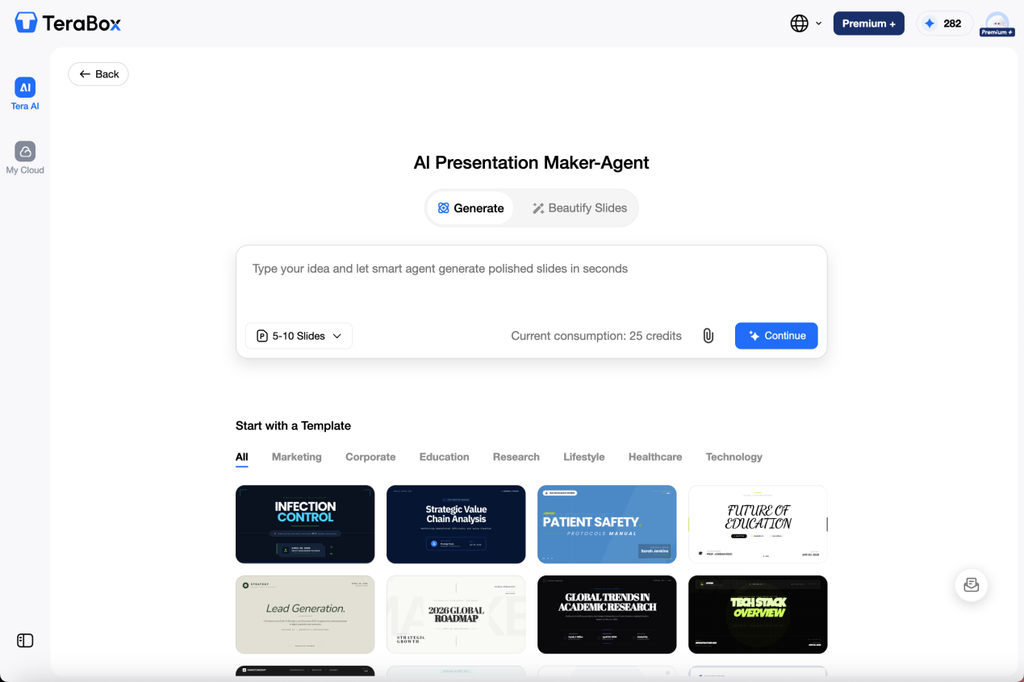
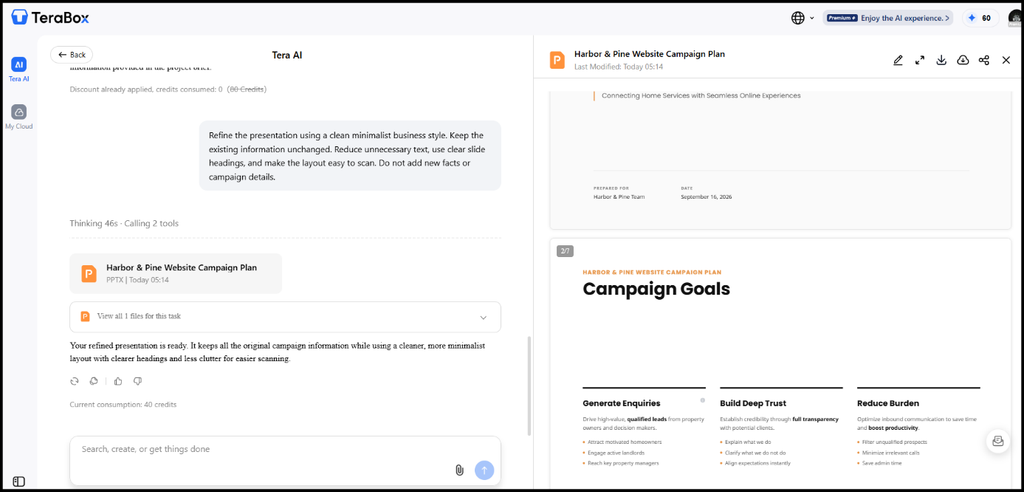
By giving a specific follow-up instruction—“Simplify bullet points into short key metrics and enlarge the header text”—the deck instantly became far more skimmable and polished. This iterative approach proved far faster than trying to write a massive, hyper-detailed prompt before seeing a single slide.
AI Image Generation
TeraBox features text-to-image and image-to-image visual generation directly inside your storage workspace. I used this by entering a targeted prompt.
The rendered image delivered clear composition, solid lighting, and sharp detail without weird artifacts or distorted objects. It served as a solid background asset for my slide deck, though custom brand logos still require standard graphic design tools.
AI Notebook and File Conversion
Beyond presentation and writing tasks, TeraBox offers specialized tools like AI Notebook and multi-format file conversion. AI Notebook accepts sources such as PDFs, Word documents, and YouTube links, converting them into structured quizzes, mind maps, flashcards, or study decks.
The built-in file converter supports common format shifts, such as PDF to Word, PDF to PPT, PDF to Excel, and Word to PDF, without requiring separate conversion websites
Step-by-Step: Getting Started with TeraBox AI for Total Beginners
If you are wondering how to use TeraBox AI efficiently, here is a simple, tested step-by-step workflow you can replicate.
1. Upload the Source File
Start with the document you actually want to work with. You can upload it to your TeraBox workspace first, or upload the file directly from the specific AI tool you want to use. The upload process is straightforward, and the file appears in the workspace without requiring several separate steps.
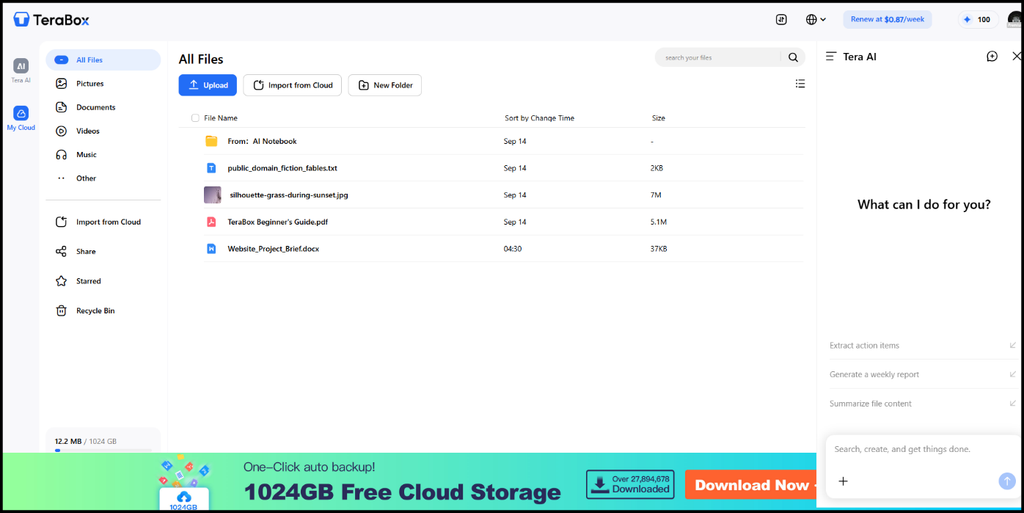
2. Open the Tera AI Workspace
Launch Tera AI from your main dashboard. The interface is intuitive and clutter-free, making it easy to select your uploaded file as the primary source context.
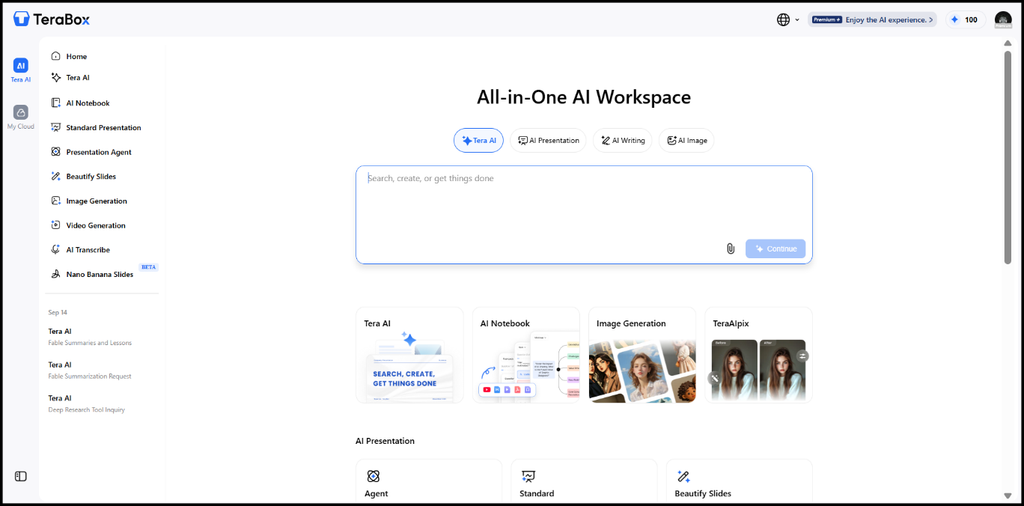
3. Ask Tera AI to Work with the Source
Give Tera AI a concise, focused prompt such as: “Summarize the primary project milestones, target audience, and key deliverables from this uploaded PDF.”
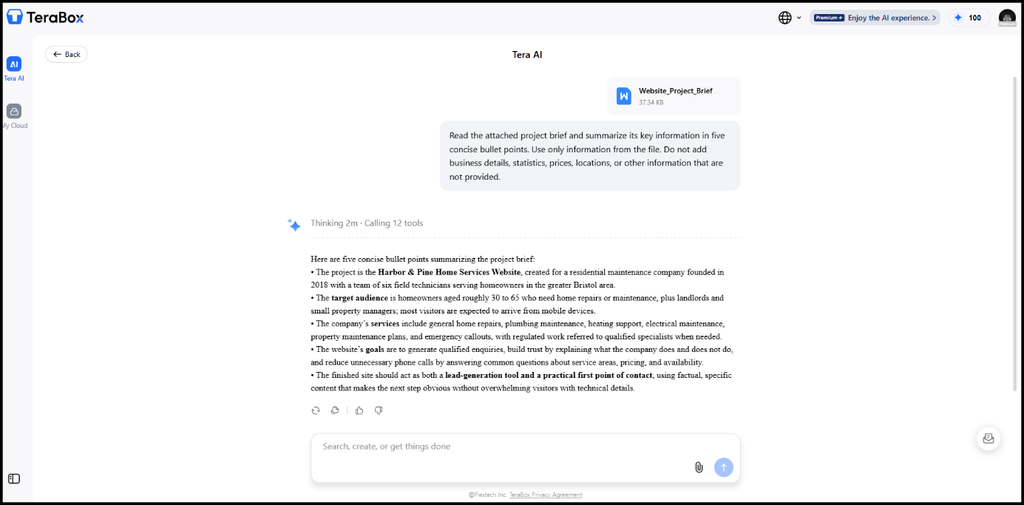
Tip: Tera AI processes requests quickly and provides responses linked to exact document sections, ensuring high factual accuracy.
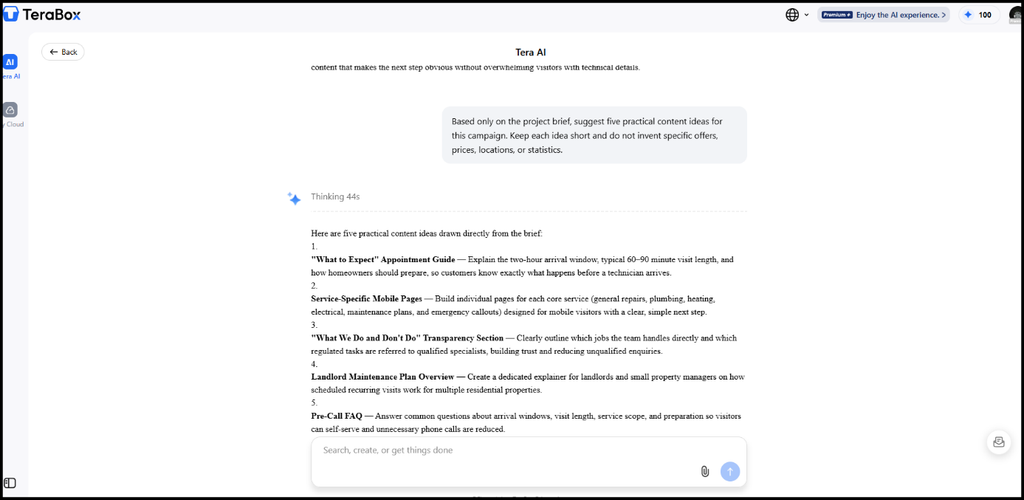
4. Turn the Information into a Presentation
Select the analyzed summary or raw file and choose the presentation generation tool. Set your target slide count and preferred visual theme to build your initial slide deck.

5. Refine the First Result
This is where the workflow becomes more useful.
Review the generated deck. Instead of editing every text box manually, use follow-up refinement prompts to adjust formatting, reduce text density, or improve visual hierarchy across all slides.
6. Create a Supporting Visual
The final step in my test was generating a supporting image for the presentation. I specifically asked for a professional editorial-style image without logos, brand names, text, prices, or specific business information.
The result followed the requested direction and was suitable for use as a presentation visual after review.
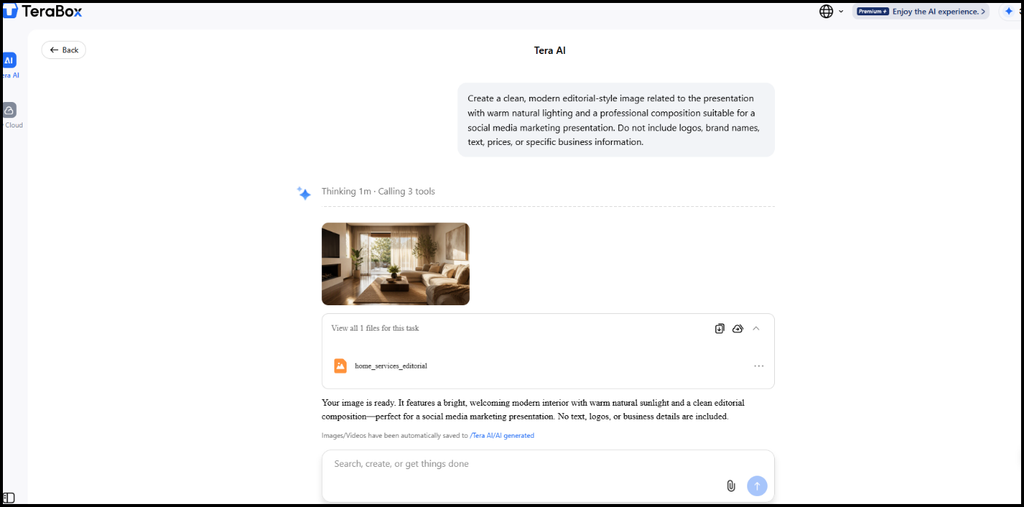
The complete workflow is therefore fairly simple: store the source, evaluate the information, turn it into an output, refine that output, and create supporting visuals when needed.
Tips to Maximize Productivity on TeraBox AI
While TeraBox AI simplifies multi-step workflows, getting reliable, clean results still comes down to how you guide the platform. After testing different document types, a few practical tips made a noticeable difference in output quality and speed:
- Start with structured source files: Feed the AI actual documents or concrete meeting notes instead of broad prompts to keep outputs grounded and accurate.
- Set explicit boundaries: Tell the AI directly which key metrics, proper nouns, or brand terms must remain untouched during processing.
- Refine in short iterations: Treat the initial output as a baseline draft. Use short, targeted follow-up prompts to tweak layout or phrasing rather than restarting from scratch.
- Chain tools together directly: Move straight from document analysis to slide creation and visual generation without downloading files locally between steps.
- Verify critical details manually: Always review generated figures, slide layouts, and phrasing before sharing materials with clients or internal teams.
TeraBox AI Guide: FAQs for Beginners
What is TeraBox AI?
TeraBox AI is an integrated suite of AI-powered productivity tools built directly into the TeraBox cloud storage ecosystem. It features Tera AI for document analysis, automated presentation generation, AI image creation, study notebooks, and multi-format file conversion.
Can I use TeraBox AI with files I already have?
Yes. You can run AI tools directly on files stored in your cloud drive or uploaded from your local device, including PDFs, Word documents, spreadsheets, and media links.
Can TeraBox AI create presentations?
Yes. TeraBox offers AI presentation tools that can create presentations from topics or uploaded reference material. It also offers tools for polishing existing presentations.
Can TeraBox AI generate images for projects?
Yes. It includes built-in text-to-image tools capable of creating modern visuals, background graphics, and editorial stock-style images directly within your drive.
Does TeraBox AI replace manual editing entirely?
No. While TeraBox AI speeds up content creation significantly, human review is still essential for final fact-checking, brand alignment, and fine layout adjustments.
Is TeraBox AI free to use?
Yes, several TeraBox AI tools offer free access, but usage limits vary by feature. Free users may have limits on generation frequency, file size, available templates, or other advanced options. A P+ membership unlocks higher usage limits and additional features.
Do TeraBox AI-generated files have watermarks?
TeraBox currently supports watermark-free exports for AI-generated materials. It is still worth checking the export options for the specific AI feature you are using.
Conclusion
TeraBox is most useful when you already have source material to work with and want to turn it into something more usable without rebuilding the process from scratch. The workflow can take you from a project document to a summary, presentation, refined slides, and supporting visuals with relatively little setup.
For document-heavy work, that balance between convenience and control is what makes TeraBox AI worth exploring.